

AD Code & Bank Account Registration
Understand what an AD Code is, why exporters register it on ICEGATE, and how it differs from a refund or incentive bank account.
We’ll walk through the bank details, ICEGATE process, port mapping, document upload and common errors in plain language.
What is an AD Code?
AD means Authorised Dealer. An AD Code is a code associated with a bank authorised to handle foreign exchange transactions. Your bank branch confirms the code and the bank account details to be used for export-related foreign remittances.
For an exporter, the practical task is to register the relevant bank details in the correct ICEGATE account section so Customs systems can use them for the applicable export processes.
AD Code account and Refund/Incentive account are different
ICEGATE shows separate account options. Choose the one that matches what you are trying to do.
| Account option | What it is for | Think of it as |
|---|---|---|
| Foreign Remittance Account (AD Code) | Declaring the bank account associated with the AD Code for foreign-remittance/export processes. | “Which bank account is linked to this AD Code?” |
| Refund/Incentive Account | Bank account details used for applicable Customs refunds or export benefits. | “Where should an eligible refund or benefit be credited?” |
ICEGATE’s Bank Account Management manual lists “Refund/Incentive Account” and “Foreign Remittance Account (Authorized Dealer Code)” as separate options.
Keep these details ready
Business identity
IEC details and the business name/PAN information used in your registrations.
Bank confirmation
AD Code confirmation from your bank and the account details the bank confirms for export-related use.
Account particulars
Account number, IFSC and bank/branch details. Copy them carefully from a bank-issued record.
ICEGATE access
Your ICEGATE login and access to the registered email/mobile for any verification or status updates.
The exact documents and verification route can depend on the account type, bank integration and the options currently shown in ICEGATE. Follow the latest portal instructions for your case.
How to register an AD Code bank account on ICEGATE
Sign in to ICEGATE
Open the official [ICEGATE website](https://www.icegate.gov.in/) and sign in using your registered account. Use the business profile connected with the relevant IEC.
Open Bank Account Management
From your profile or dashboard, open the bank account management area. Portal labels can change, so use the current menu shown after login.
Select the correct account type
Choose Foreign Remittance Account (AD Code) for AD Code registration. Do not select Refund/Incentive Account unless you are registering that separate account.
Enter the bank and AD Code details
Enter the AD Code, bank account number, IFSC and other requested particulars exactly as confirmed by your bank. Recheck every digit before moving on.
Choose the registration Customs location
Select the Customs location/port for the registration request from the portal’s available choices. Keep a note of the location you choose, because the registered port matters for later amendments to that AD Code account.
Complete the bank’s verification route
If your bank is available for online verification, follow the portal’s on-screen process. If ICEGATE asks for supporting documents or an IRN, use the document route shown for your application.
Upload documents only when asked
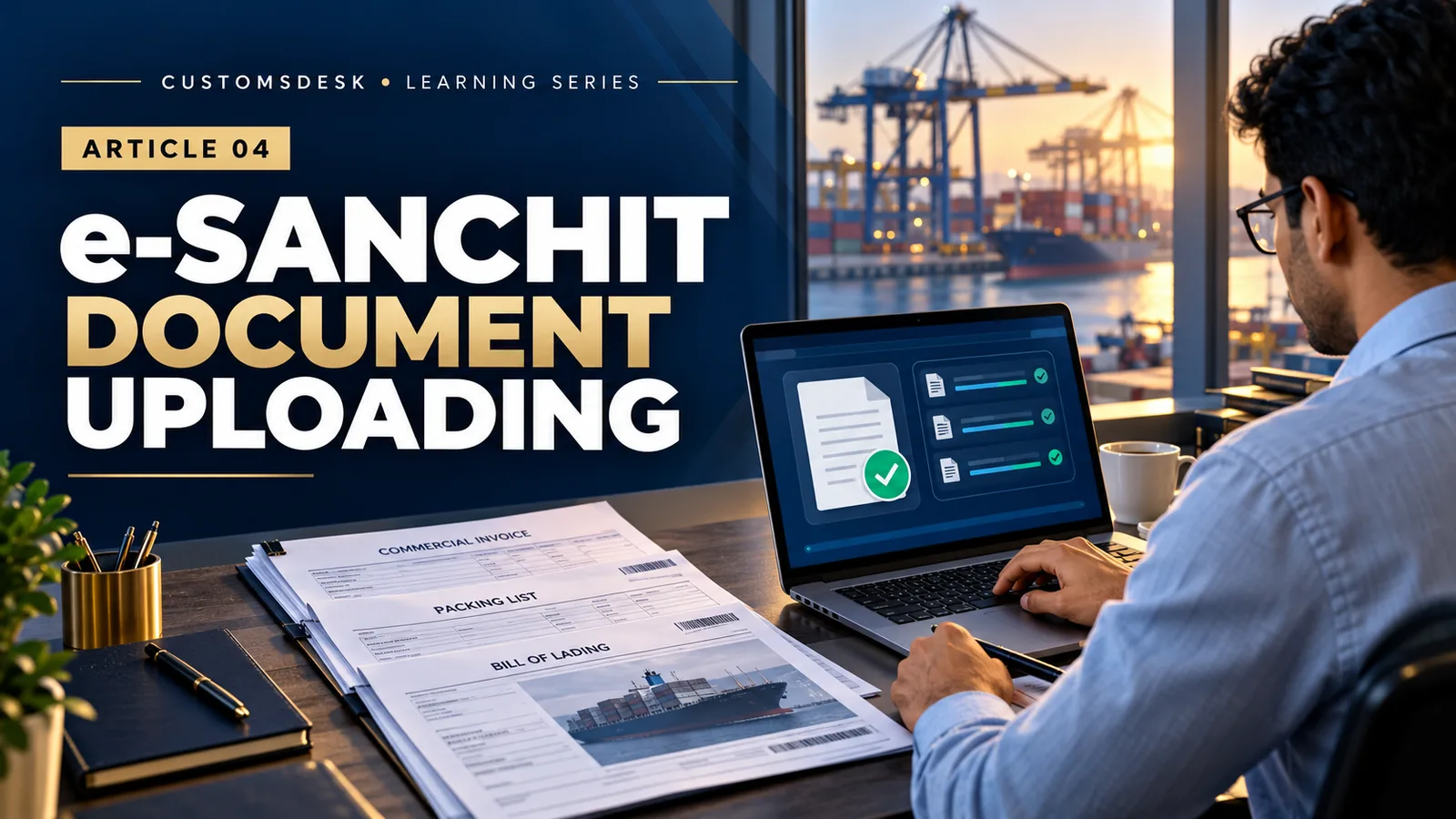
If the application requires documents through e-SANCHIT, upload the requested bank proof in the format specified by ICEGATE. The document must pass digital-signature validation.
A registered, valid DSC may be needed for this route. ICEGATE’s guidance specifies a Class 3 Individual, Encrypted DSC for its DSC-related process. This does not mean every AD Code application always needs a DSC; check what your application asks for.
Submit and save the acknowledgement
Submit the request and save the application/acknowledgement number, IRN if applicable, and any confirmation message. These details help you follow up if the status remains pending.
Track the status
Return to Bank Account Management and check the status shown for the AD Code account. If it is pending or rejected, read the portal’s reason and act on that specific issue.
Do I have to register the same AD Code at every port?
Generally, no. Under ICES Advisory No. 10/2022, an AD Code with its associated bank account is registered at one Customs port and is then available across Customs locations. The system change removed the earlier need to register the same AD Code separately at every port.
- Choose a suitable Customs location for that AD Code’s registration.
- Once registered, that AD Code can be used at other Customs locations under the IEC, subject to the applicable system requirements.
- If you have multiple AD Codes, each may have its own registration port.
- For an amendment to a particular AD Code account, use the port of registration for that AD Code.
See [ICES Advisory No. 10/2022](https://icmai.in/upload/Taxation/ICES-Advisory-No-10_2022.pdf) and [JNCH Public Notice No. 33/2022](https://www.jawaharcustoms.gov.in/pdf/PN-2022/PN-33-2022.pdf).
Where PFMS validation fits in
PFMS is relevant to the validation and payment path for certain bank-paid refunds or export benefits. For example, Customs guidance on IGST refunds and Drawback describes cases where an incorrect AD Code, IFSC or bank detail can cause a PFMS rejection or prevent credit.
- Register or update the relevant bank details in the correct ICEGATE account section.
- Check the account/PFMS status shown for the relevant Customs location or benefit.
- If the status is rejected, read the rejection reason and correct the bank or account detail through the prescribed ICEGATE process.
- Track the refund/benefit status separately; successful bank-account submission alone does not guarantee that every refund or benefit has been approved or paid.
For current examples, see [Chennai Customs Facility Circular 03/2026](https://chennaicustoms.gov.in/wp-content/uploads/2026/01/Facility-Circular-03.pdf) on IGST refund/PFMS validation and [Facility Circular 18/2025](https://chennaicustoms.gov.in/wp-content/uploads/2025/09/Facility-Circular-18-2025-with-annexure.pdf) on Drawback PFMS errors.
Common problems and what to check
| What you see | What to check first |
|---|---|
| Bank verification fails | Check whether the bank/branch details are correct and whether the portal offers an online or document-based verification route for that bank. |
| Account holder mismatch | Compare the account holder name with the IEC/business records and the bank-issued proof. Check spelling, abbreviations and legal entity name. |
| Wrong IFSC or account number | Verify directly against a current bank document. Do not rely on a manually retyped or old account record. |
| e-SANCHIT rejects the document | Check that the document is in the accepted format and that the digital signature is valid and registered on ICEGATE. |
| Request is pending | Check the application status and acknowledgement. Follow any location-specific or bank-specific instruction shown on ICEGATE. |
| Refund or Drawback not credited | Check the separate Refund/Incentive account and its PFMS/status details; AD Code registration by itself may not resolve a payment-validation issue. |
| Need to amend a registered AD Code | Identify the port of registration for that AD Code and follow the current ICEGATE modification process for that registration. |
Remember these five points
- Your bank confirms the AD Code and related bank details.
- Register an AD Code under Foreign Remittance Account (AD Code).
- Keep the separate Refund/Incentive Account in mind for applicable refunds/benefits.
- One-port registration of an AD Code maps it across Customs locations; amendments are made at that AD Code’s registration port.
- Use e-SANCHIT/DSC only when the portal’s requested document route requires it, and check PFMS/payment status separately where applicable.
Frequently asked questions
Is the AD Code issued by ICEGATE?
No. Your bank provides or confirms the AD Code. ICEGATE is where the relevant account details and registration request are submitted and tracked.
Is an AD Code the same as my IEC?
No. IEC identifies the importer/exporter. AD Code is associated with the authorised dealer bank and its foreign-exchange services. They are connected in export processes, but they are different records.
Do I need to register the same AD Code separately at every port?
The system change under ICES Advisory No. 10/2022 provides for registration at one port and availability across Customs locations. Keep the registration port noted for future amendments, and follow the current ICEGATE status/instructions for your account.
Do I always need a DSC?
No. A DSC is relevant when the process asks you to digitally sign or upload documents through e-SANCHIT. Follow the current ICEGATE instructions for your specific application.
If my AD Code is registered, will my refund automatically arrive?
Not necessarily. Refund eligibility, the Refund/Incentive account, PFMS validation and payment processing are separate checks. Check the status and reason shown for the relevant refund or benefit.
What should I do if my application is rejected?
Open the status or rejection details in ICEGATE, identify the exact mismatch, correct the information or document, and submit the modification/fresh request through the option prescribed by the portal.
Check the latest instructions
ICEGATE screens and bank verification steps can change. Before applying or modifying an account, check the current advisory/manual and the instructions visible after login.
- ICEGATE Registration Advisories — latest Bank Account Management manual/advisory listings.
- ICEGATE FAQs — e-SANCHIT, digital signature and portal guidance.
- ICES Advisory No. 10/2022 — one-port AD Code registration system change.
- JNCH Public Notice No. 33/2022 — Customs notice explaining the AD Code port-mapping change.
- Chennai Customs Facility Circular 03/2026 — examples of IGST refund/PFMS validation issues.
- Chennai Customs Facility Circular 18/2025 — Drawback cases involving PFMS rejection.
Editorial note: This guide is for general information and learning. Portal steps and requirements may change; confirm the current instructions with ICEGATE, your bank and the relevant Customs authority before acting.


Leave a Reply